Easily identify your optical forms, whether for testing or surveys, scan them with Sekonic SR-1800 or Sekonic SR-55 devices, evaluate the scans, and save the results as a Microsoft® Excel file. Easily. Simply.


Ozzy OMR Sheets v1.1.41 has been released
Nov. 18, 2025, 9:18 p.m.
Define, read, evaluate, and export surveys or tests in four simple steps using Sekonic™ SR-1800 and Sekonic™ SR-55 Optical Mark Readers. 1. Define your own OMR Sheets easily by reading markings from the sheet. 2. Define your answer keys by simple clicks, or read the answer keys from the marked sheet for tests 3. Read OMR sheets using the Sekonic™ SR-1800 or SR-55 Optical Mark Reader devices. 4. Evaluate the results and export all individual sheet results and charts to a Microsoft™ Excel file. The Ozzy OMR Sheets application version 1.1.41 is now available on the Microsoft™ Store. This version includes many new features and improvements and is now available for your enjoyment. If you have previously downloaded and are using it, please don't forget to update.
With the Ozzy OMR Sheets application, you can do the following:
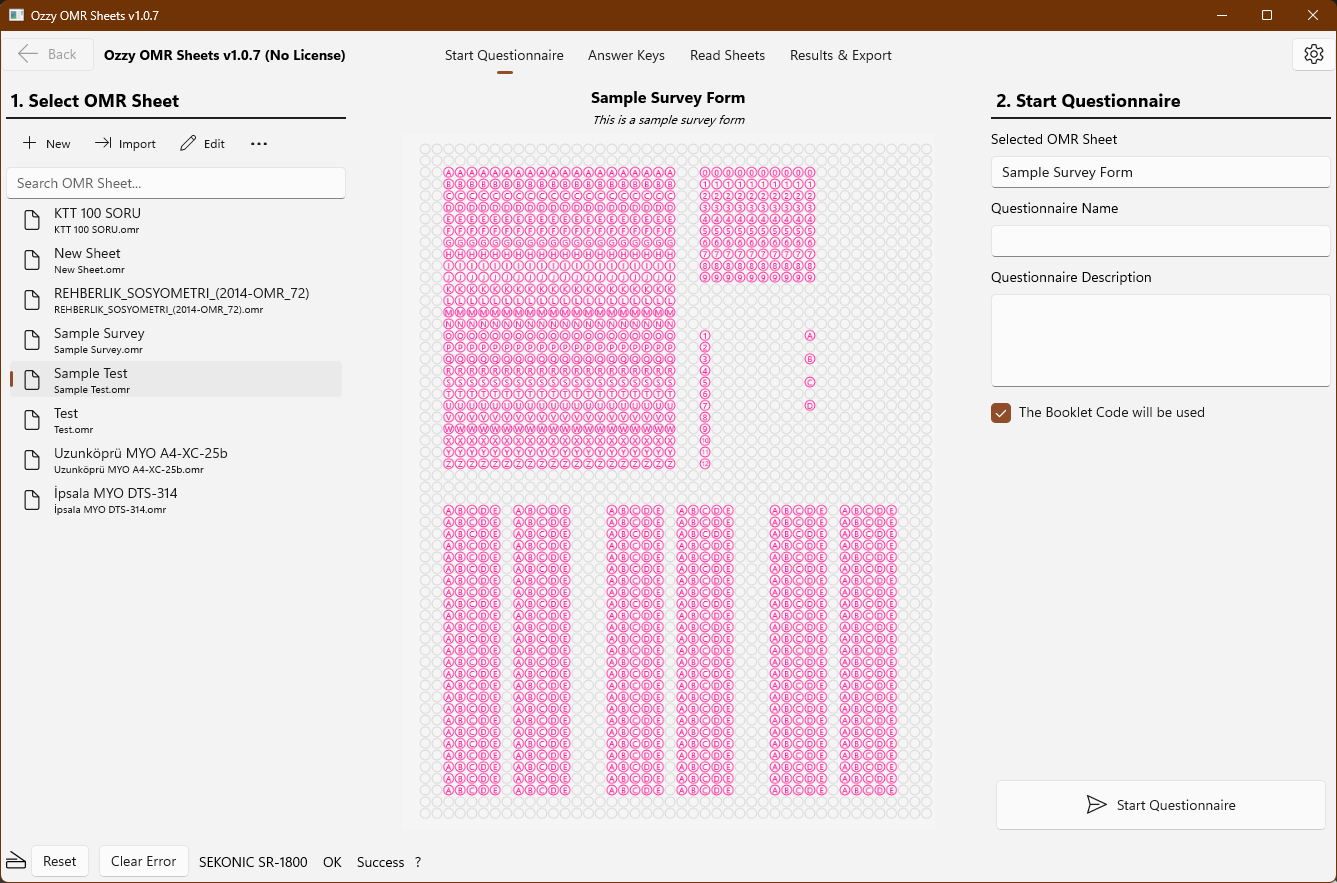
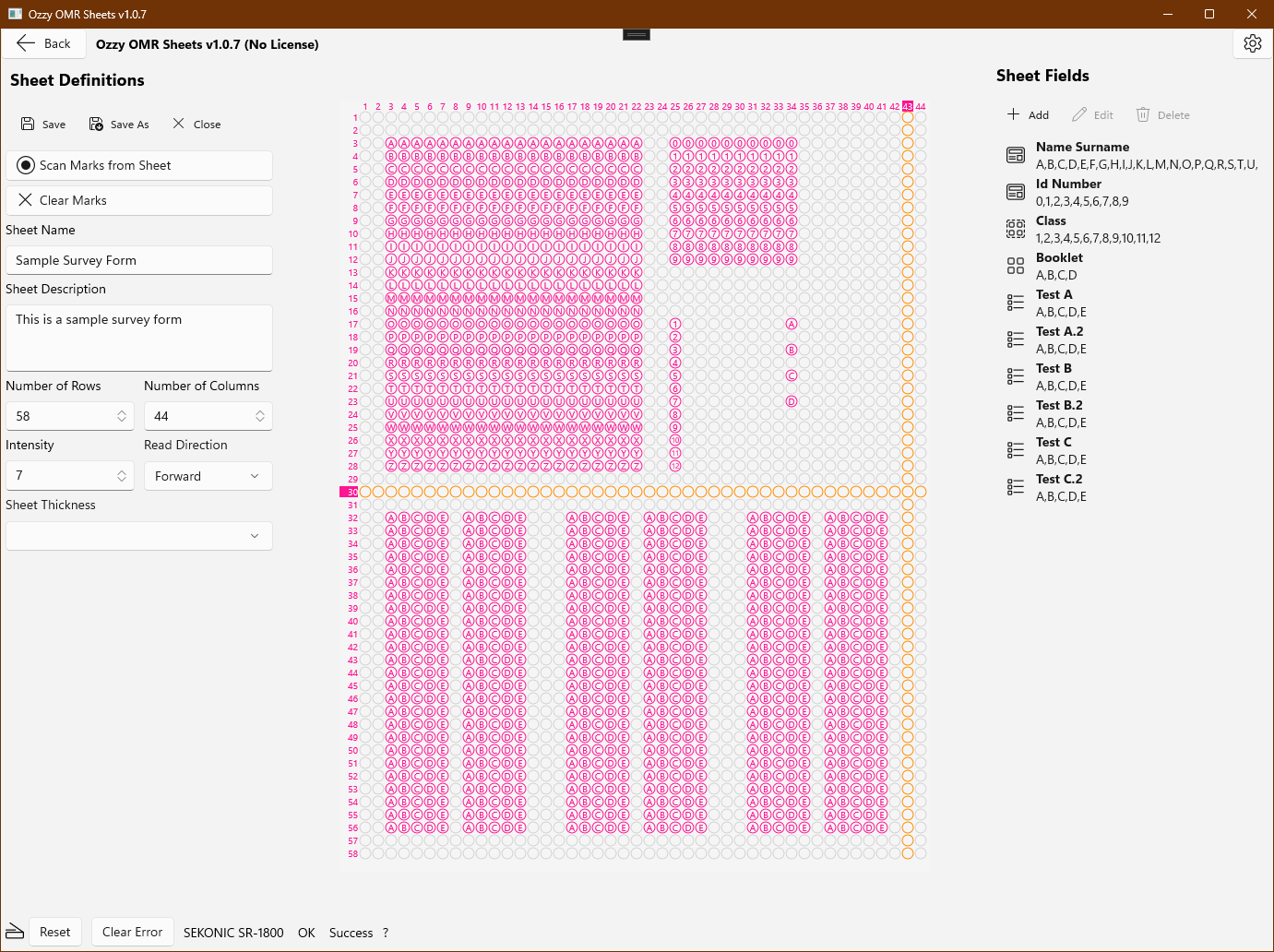
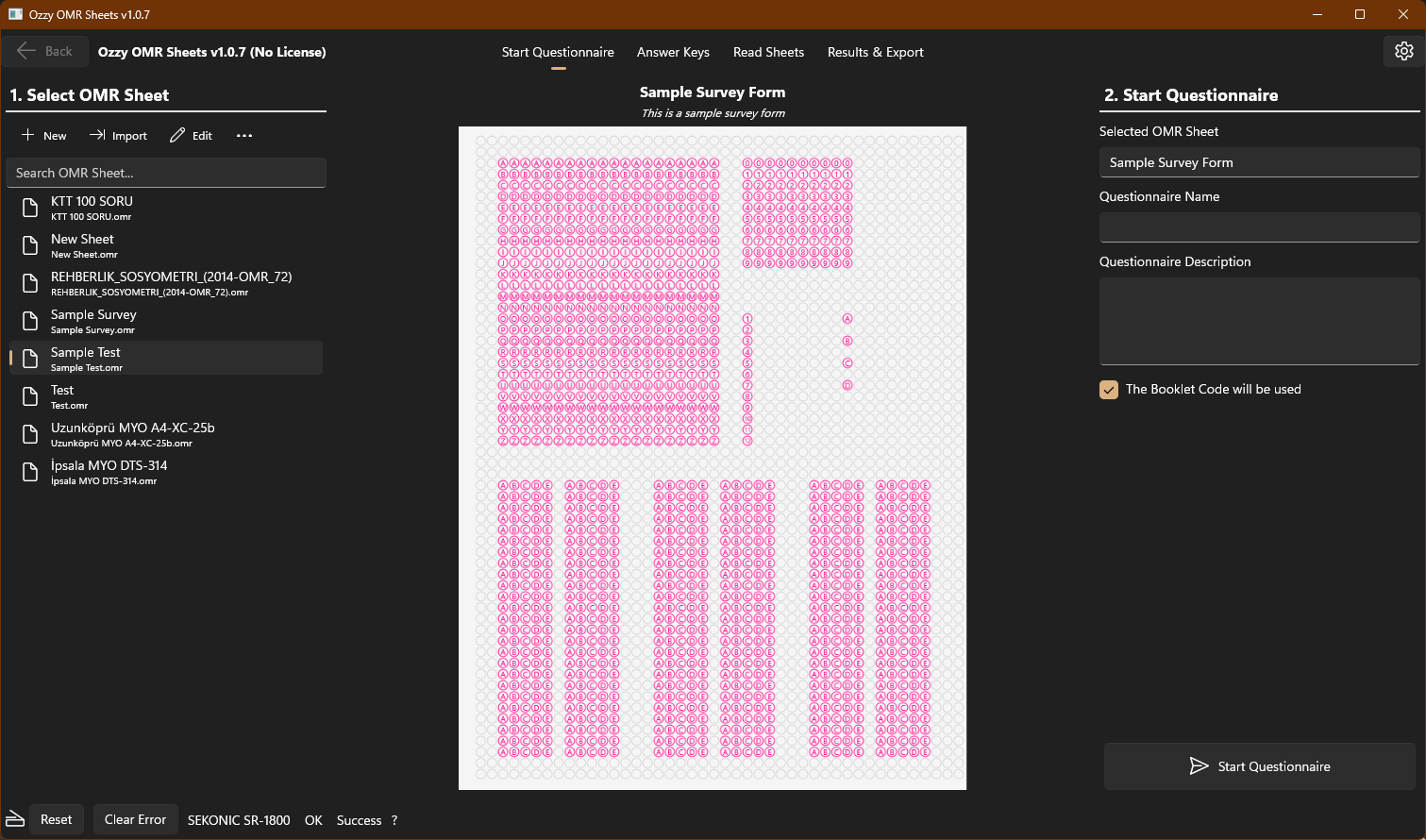
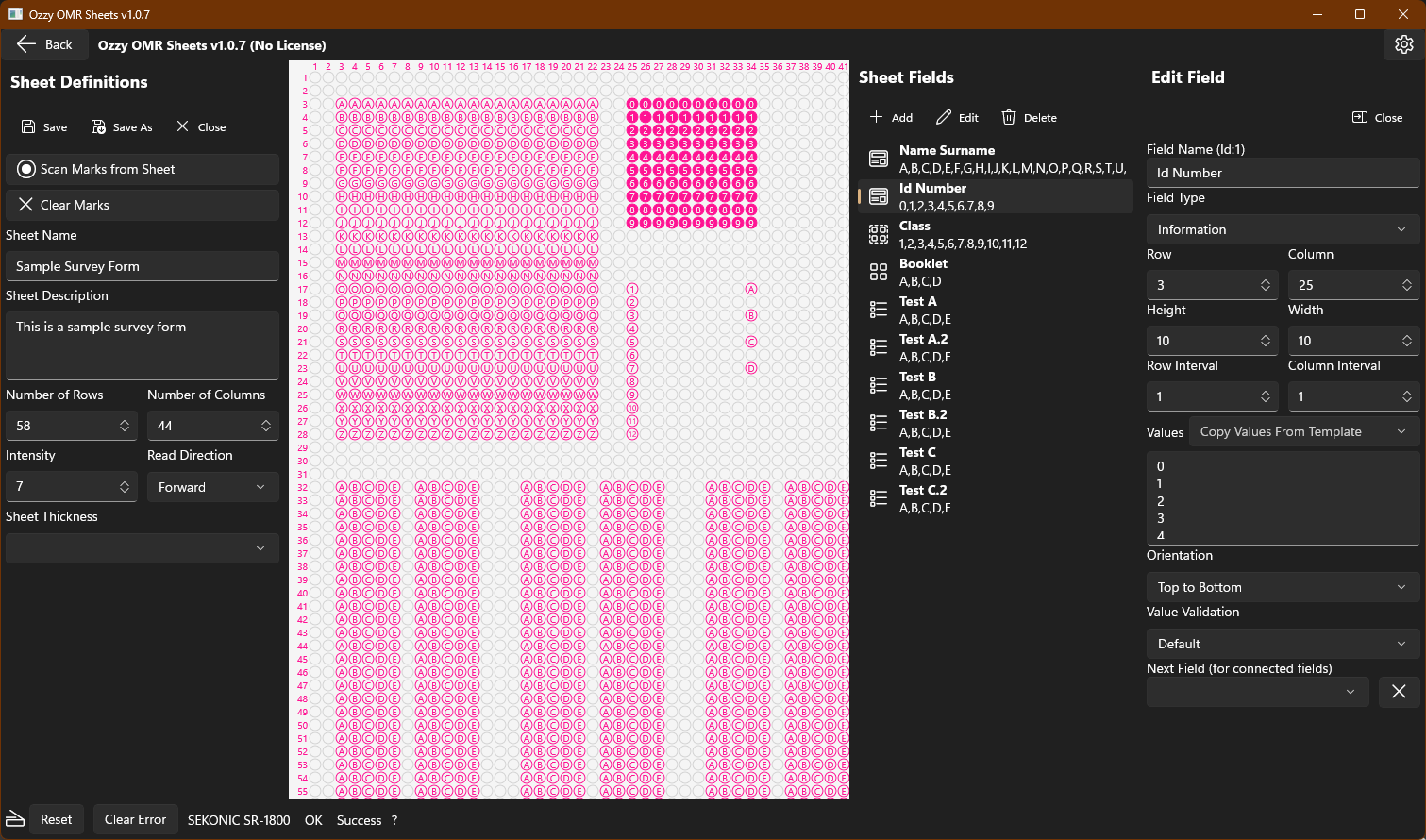
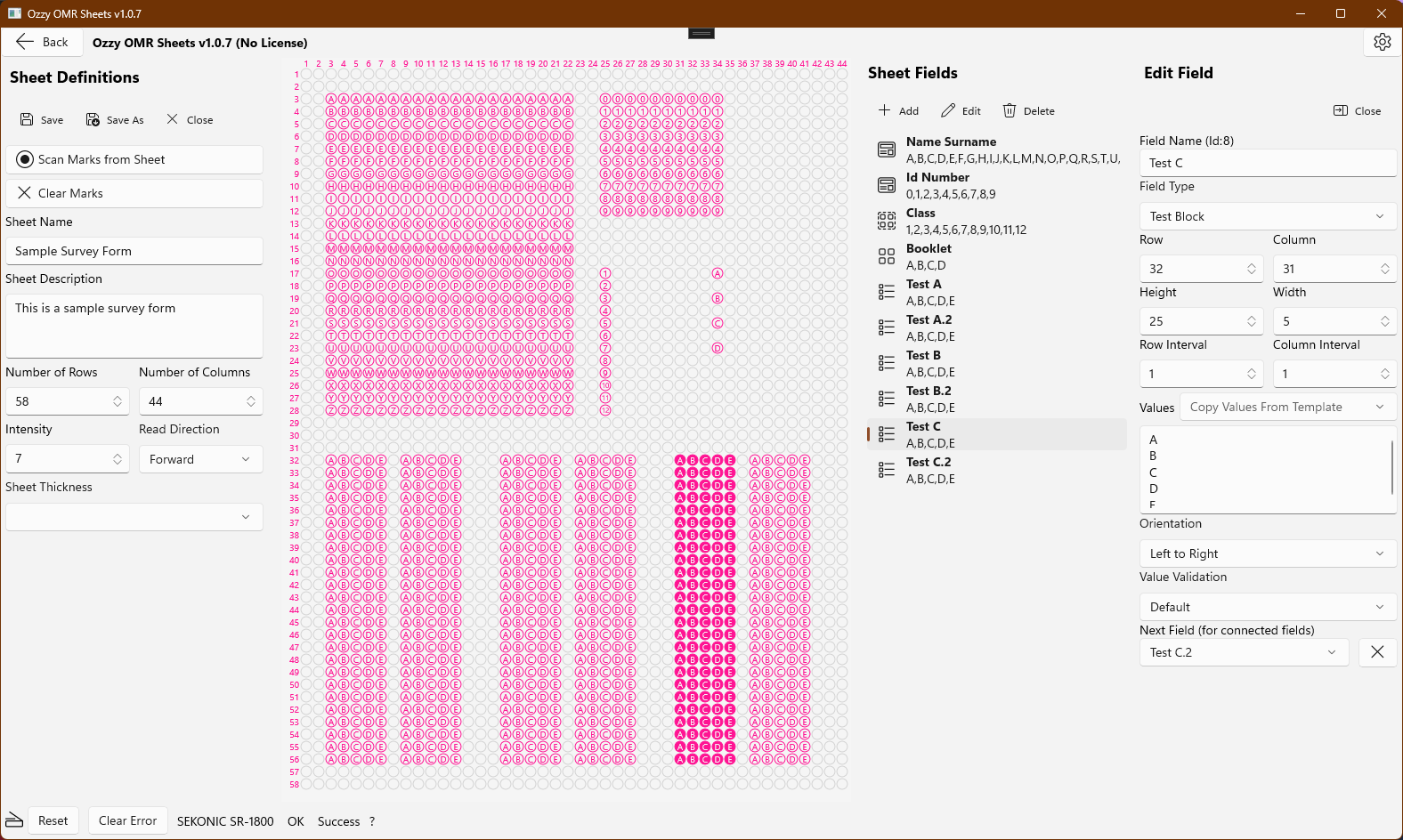
You can easily define your information collection, survey, exam, or test OMR forms to the application. To do this, simply mark the corners of each information field on the OMR form you are using with a pencil, and then scan this form using the new form definition screen in the application. This will display all fields on your form on the screen. After this step, you can define your fields by selecting and marking each field from corner to corner with the mouse. You can configure many settings such as the type of each field, marking information, row and column position on the form, and spacing from the window that opens. You can define as many OMR forms as you want. The application will ask you to select which form you want to use before each scan.
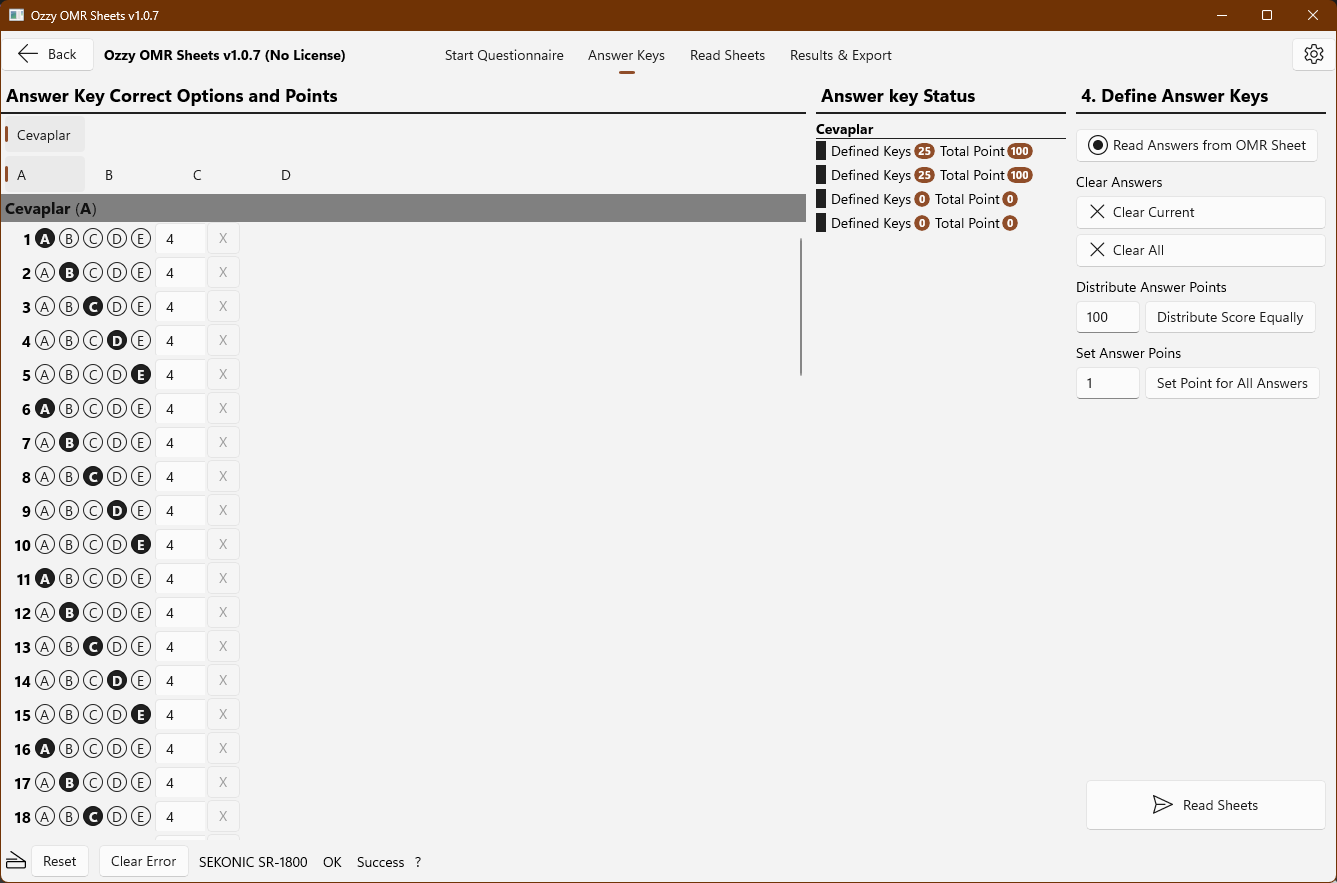
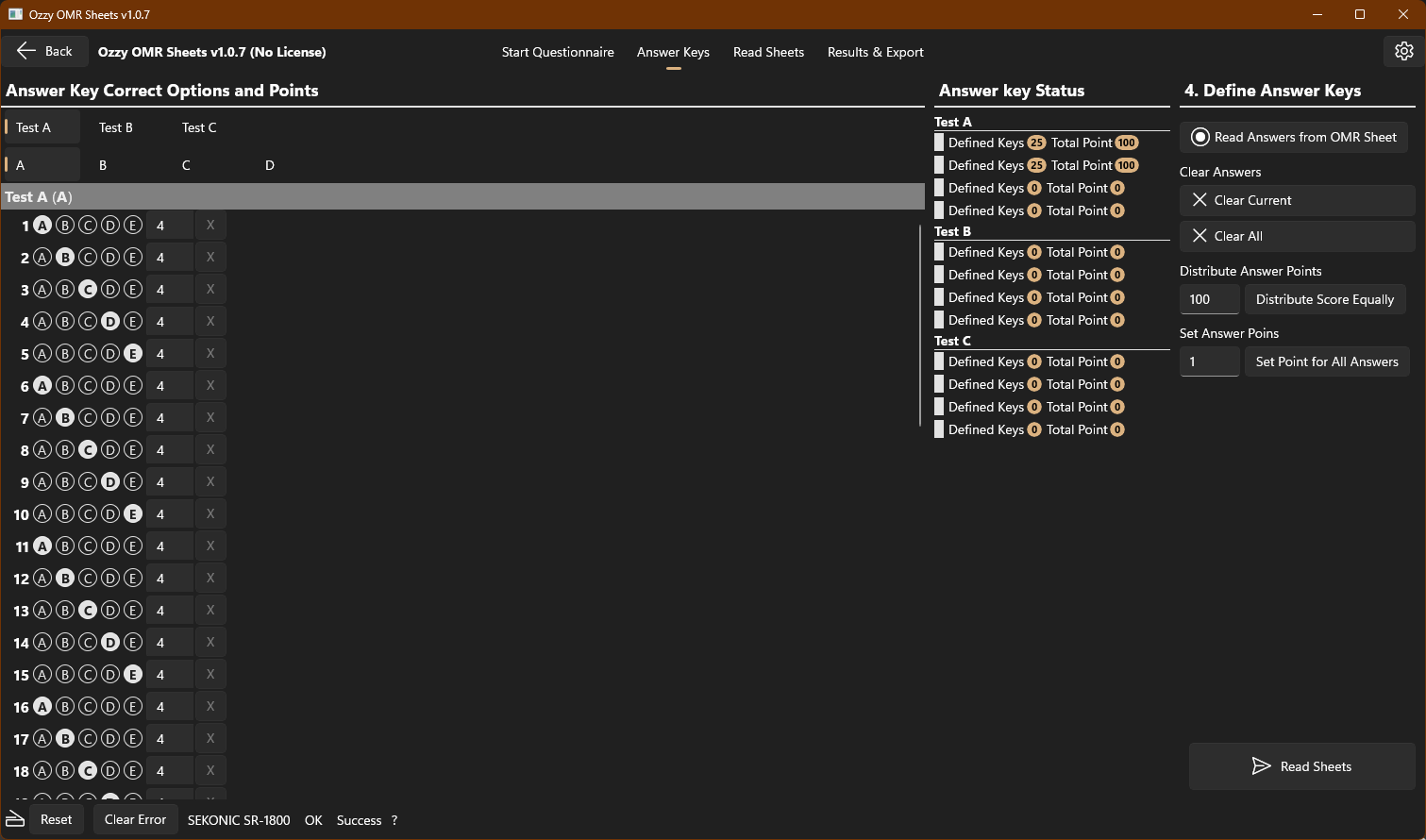
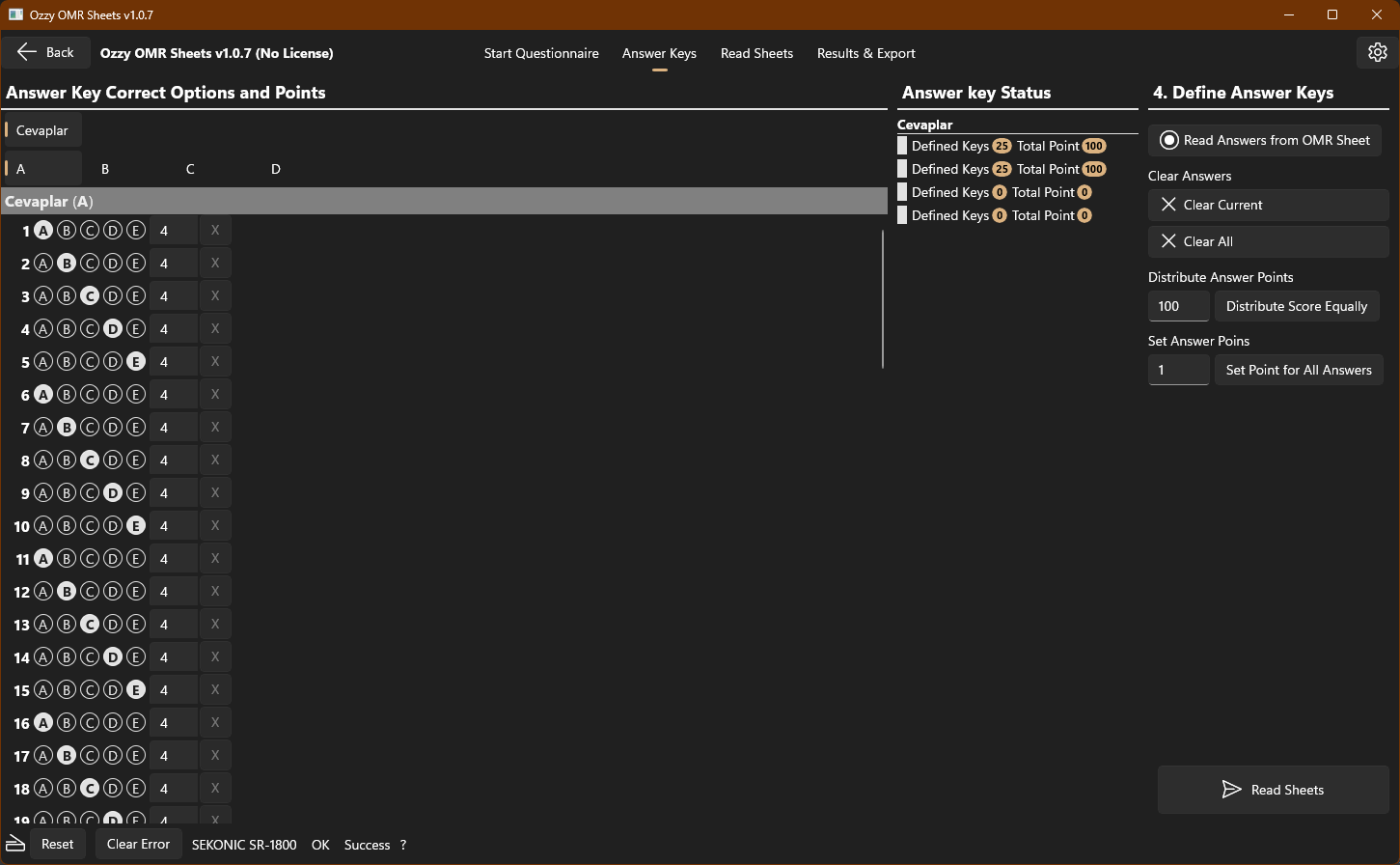
You can easily scan your predefined OMR forms using the Sekonic SR-1800 or Sekonic SR-55 OMR scanner devices. If it is a survey or information collection form, all the fields you have defined will be filled in as the sheets are scanned. If it is an exam or test, you will be asked to define the answer key before you start scanning the OMR sheets. Answer keys must be entered separately for each test and each booklet type on the OMR form. Correct answers can be entered by clicking on the screen with the mouse, or you can mark the correct answers on the OMR form and scan these answers on the relevant screen to create an answer key. In this case, individual OMR forms must be filled out for each booklet type. After the correct answers have been defined, a score must be determined for each answer. The scores for the correct answers can be entered individually for each question, or a specific score (e.g., 100 points) can be distributed equally among all questions using the buttons on the right, or a specific score (e.g., 5 points) can be easily assigned to all questions in a fixed manner.
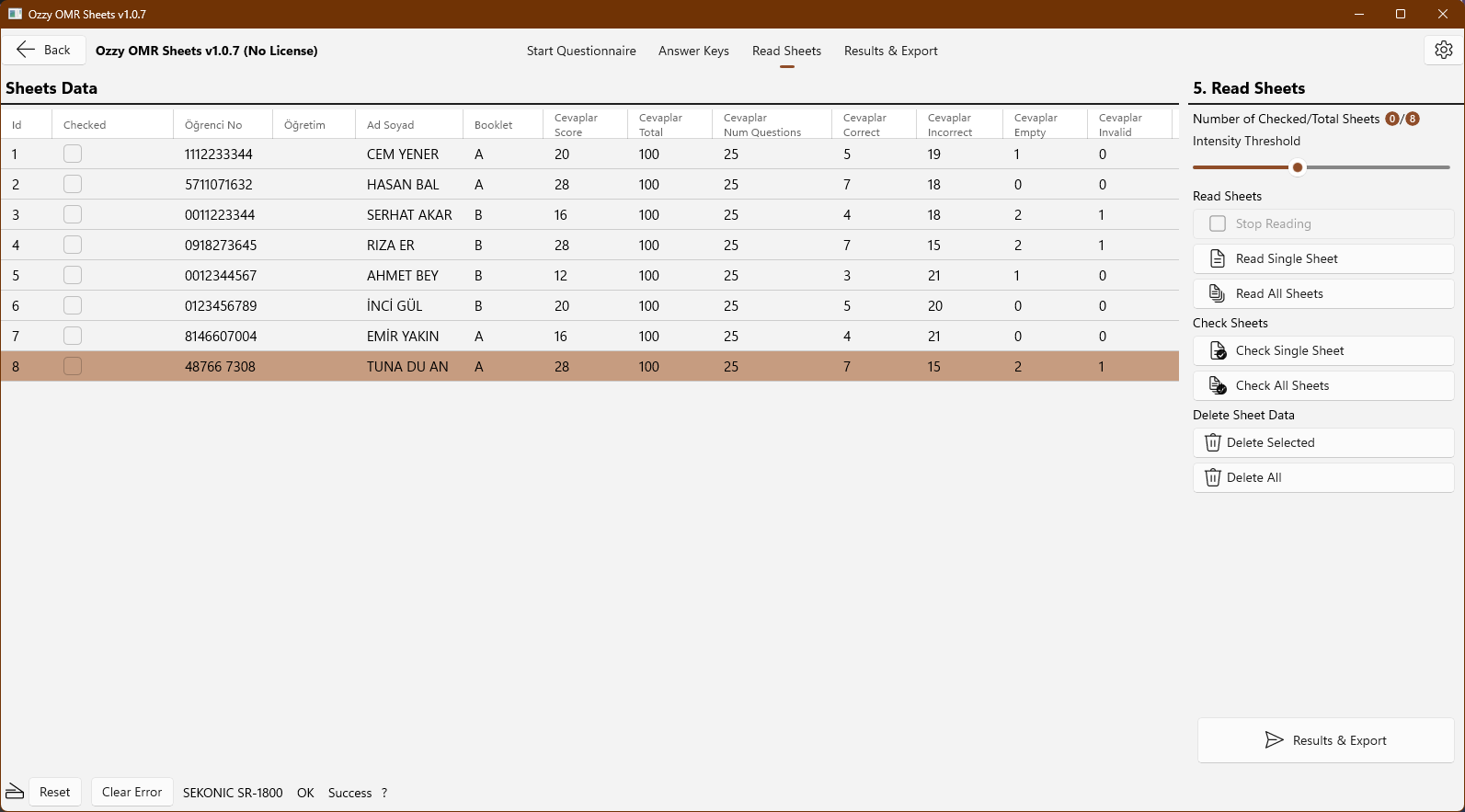
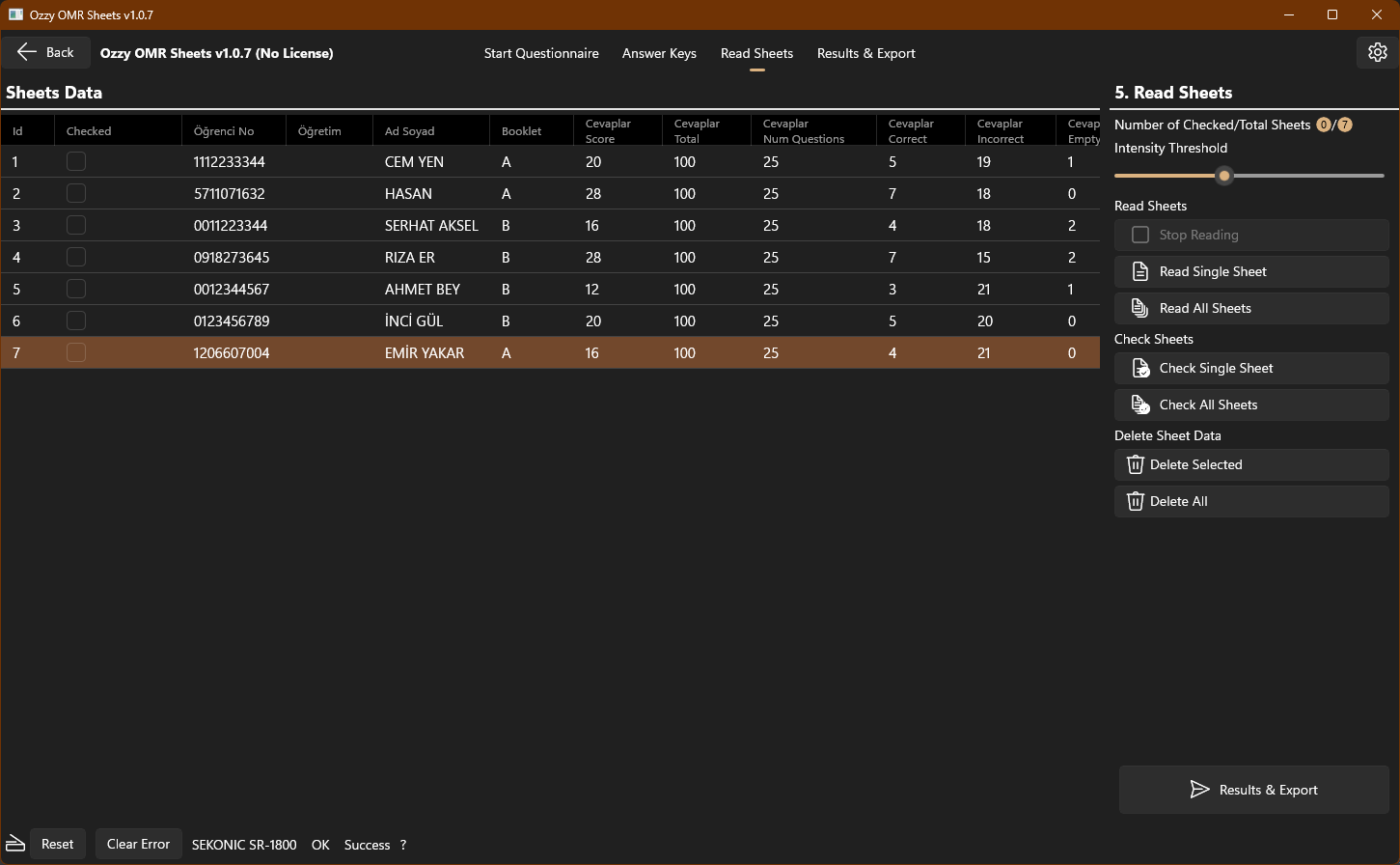
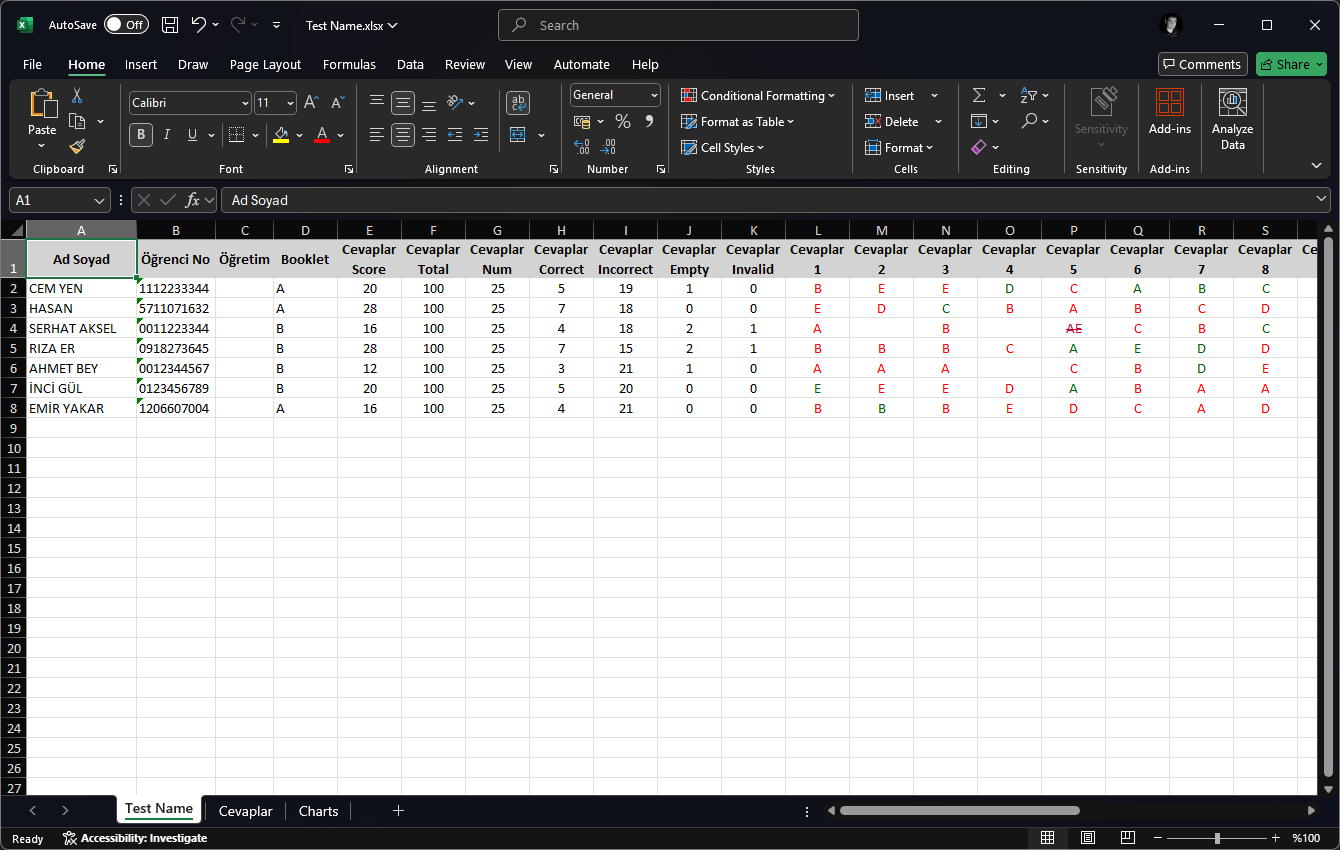
After defining the answer key and determining the points for the exam or test OMR forms, you proceed to the sheet scanning screen. On the sheet scanning screen, all fields defined on your OMR form appear as columns in the table. On the exam or test form, information such as points, total points, number of correct answers, number of incorrect answers, number of blank answers, and number of invalid answers will also be displayed. Each successful sheet scan will be added to the table as a new row. As the sheets in the device tray run out, you can continue scanning by adding new ones.
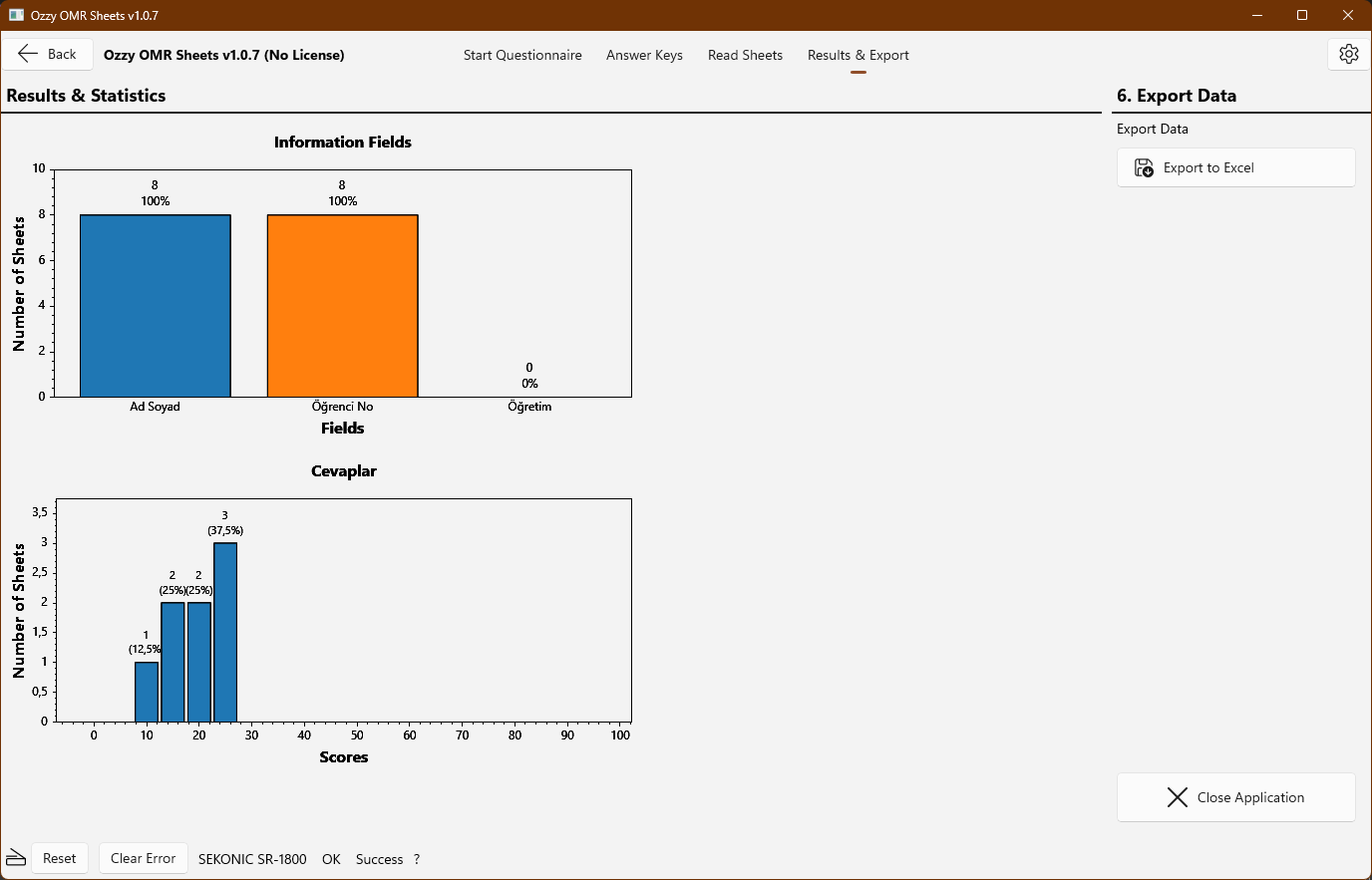
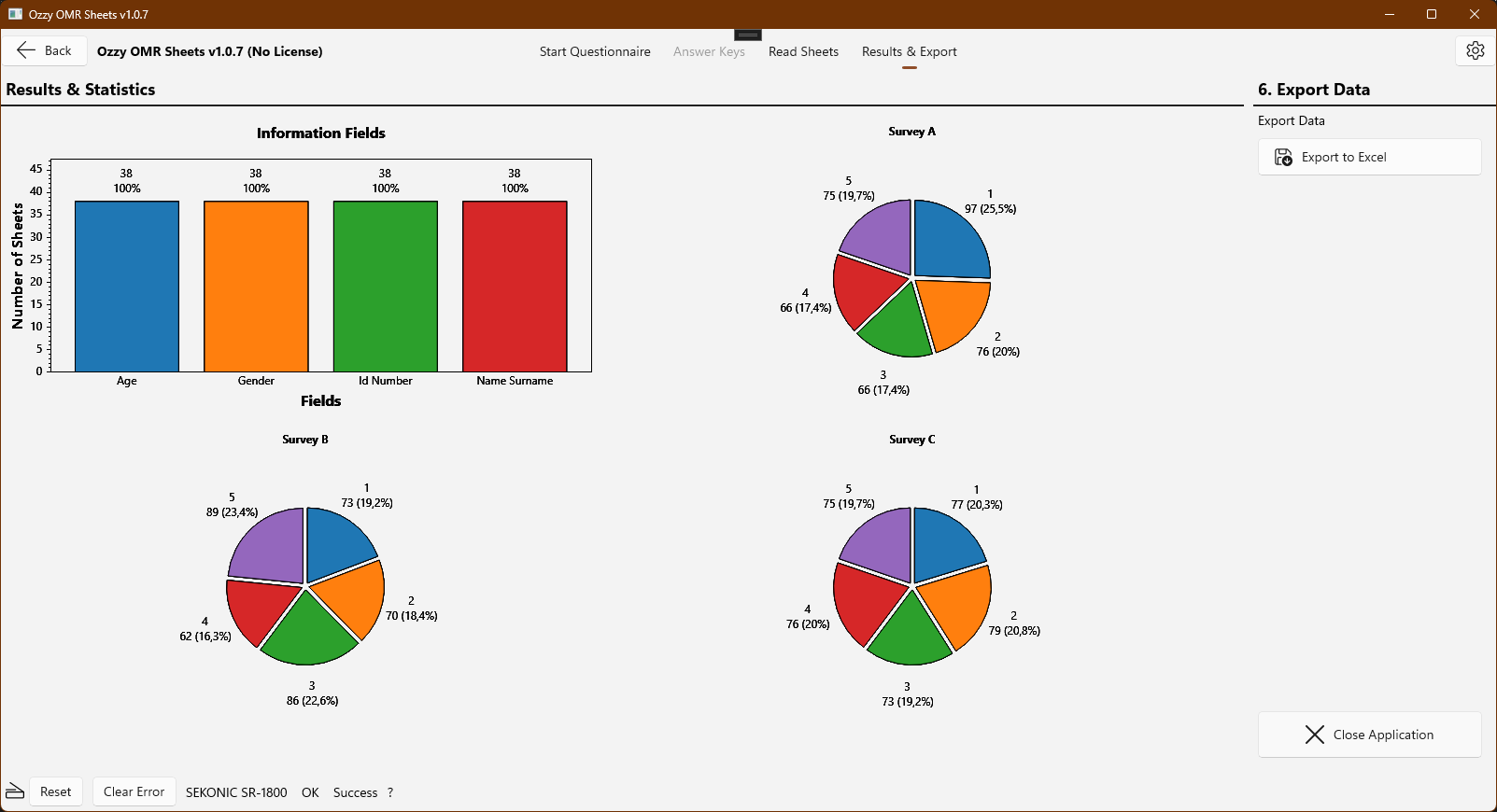
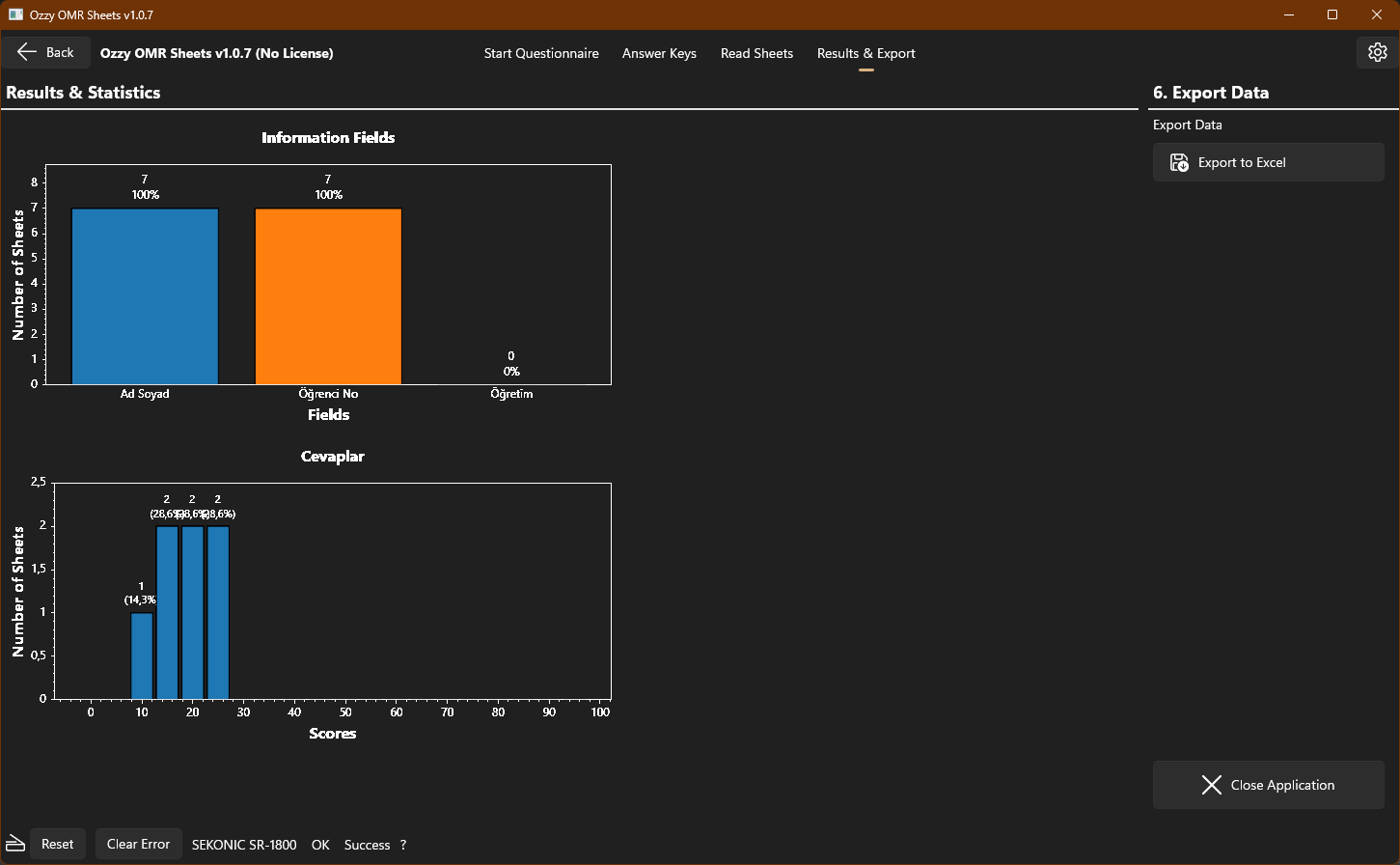
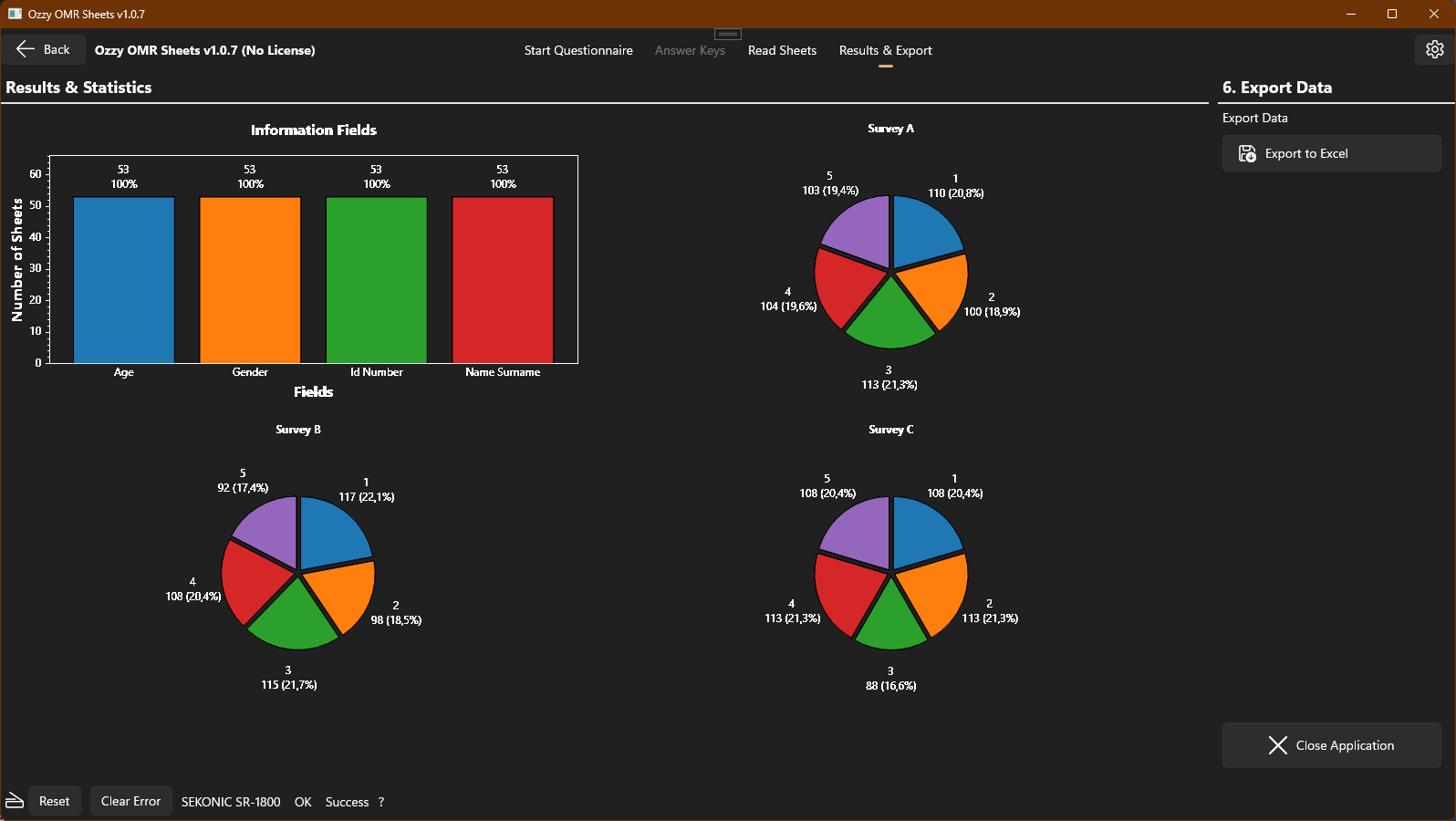
After all your OMR form readings are complete, you will be taken to the evaluate and save screen. On this screen, a general evaluation of the scanned OMR forms is presented graphically. For information fields, a list is provided showing how much of these information fields have been filled in. For each selection field, statistical information on which options were selected by how many people is provided in a pie chart. If a test or exam OMR form has been scanned, the success score distribution and information on how many people answered each question correctly, incorrectly, left it blank, or answered invalid is displayed as pie charts.
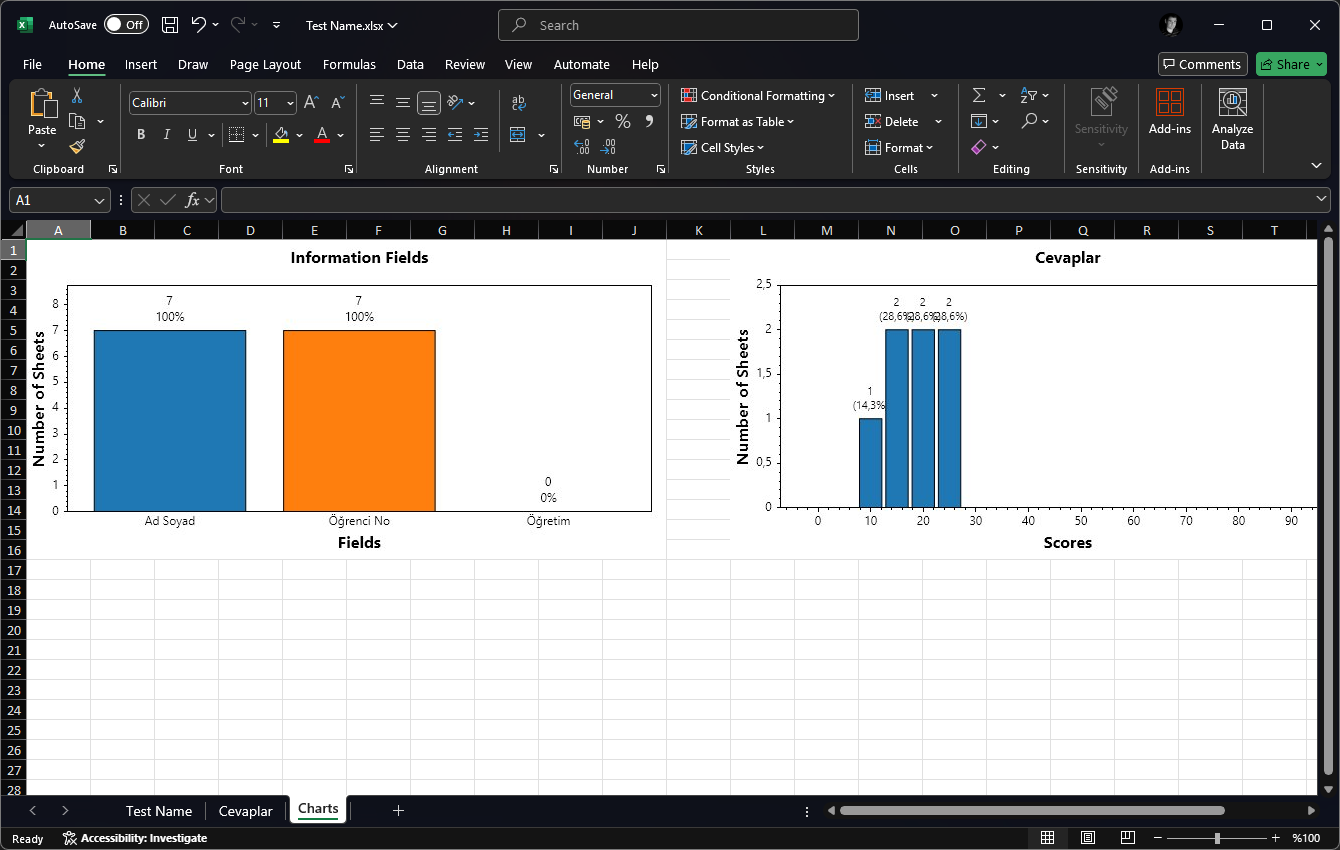
In the final stage, all collected information, answer keys, charts, and markings are saved as a Microsoft™ Excel file. In the Microsoft™ Excel file, you can find all the sheet reading data, the calculated total score, the number of correct, incorrect, blank, and invalid answers, all the individual answer markings, and, if it is a test or exam form, the answer keys for each test area and booklet type, all the graphs you see on the screen, and additionally, you can find the density values (darkness) for all areas marked on the OMR form for each sheet. You can use the score lists to enter grades, add graphs to your exam report by copying and pasting them as needed, and use the answer keys and density values to check if you notice any suspicious markings on an OMR form.
If you want to perform a new reading with the same OMR form and answer keys, you can return directly to the reading screen by clicking the relevant button and perform a new reading with the same OMR form you previously selected and the answer keys you previously defined. For example, you can read different classes with the same questions in this way and save them as separate files. If you want to start a completely new exam reading, you can return to the beginning by clicking the relevant button. Since Ozzy OMR Sheets is a Microsoft™ Store application, it will automatically update when a new version is released. The time Ozzy OMR Sheets saves you in OMR form reading and evaluation will allow you to dedicate more time to yourself.